

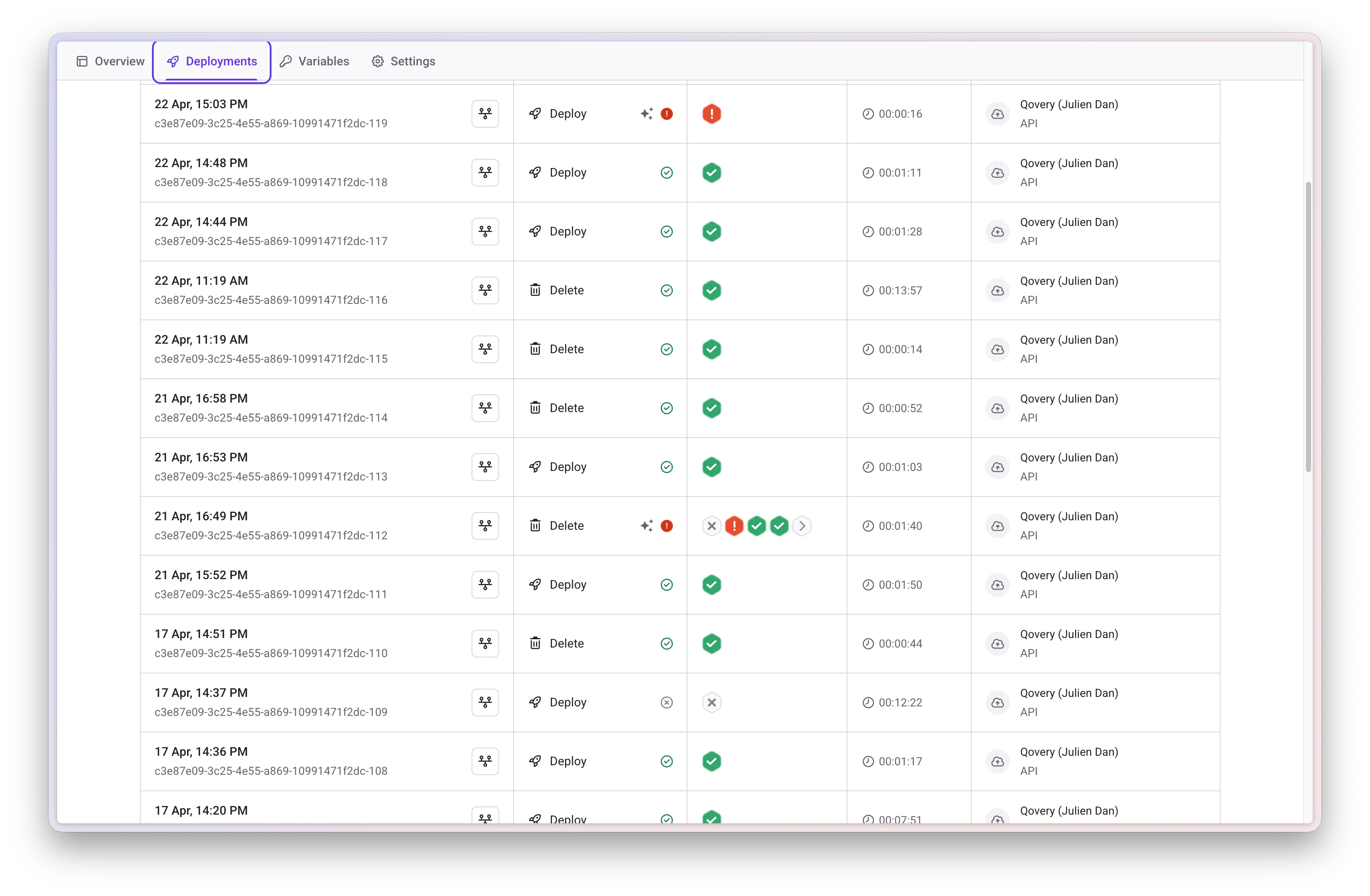
Information Available
The deployment history shows the following information for each past deployment trigger:Execution ID
An internal ID assigned to each deployment. This ID can be shared with the Qovery support team when troubleshooting deployment issues.Service Details
Each service deployed during the execution is listed with:- Deployment status
- Version deployed (commit hash or image tag)
Trigger Source
Each deployment entry shows the origin of the trigger with an icon:Triggered By
Shows who or what initiated the deployment: a user account (name or email) for manual triggers, or a system identifier for automated ones.Duration
The elapsed time between when the deployment started and when it reached a terminal status (success, failed, or cancelled).Status
The current or final status of the deployment. See Deployment Statuses for the full list of possible values.Available Actions
Cancel a Deployment
Deployments in Queued or In Progress status can be cancelled. Click the cancel icon next to the deployment entry in the history table. Cancelling a running deployment stops the ongoing operation and leaves the environment in the state it was in before the deployment started.Open Pipeline View
Click Pipeline view on any deployment entry to see a stage-by-stage breakdown of that execution. The pipeline view shows which services were deployed in each stage, their individual statuses, and any dependency ordering that was applied.View Logs
Click View logs on any deployment entry to open the logs for that specific execution. This is useful for debugging failed deployments or reviewing what happened during a past run. See Deployment Logs for more details.Next Steps
Deployment Logs
Access deployment logs
Deployment Actions
Control your deployments
Deployment Statuses
Understand deployment statuses
Deployment Pipeline
Configure deployment stages